Webhook
Webhooks are custom HTTP callbacks that you define and run. They can take any action needed whenever a notification is opened or closed. For example, by creating a ticket in a ticketing system that is not supported natively by SUSE Observability. Or by simply writing the notification messages to an S3 bucket for future reference.
The webhook channel sends the notifications data as JSON over HTTP.
Configure a webhook
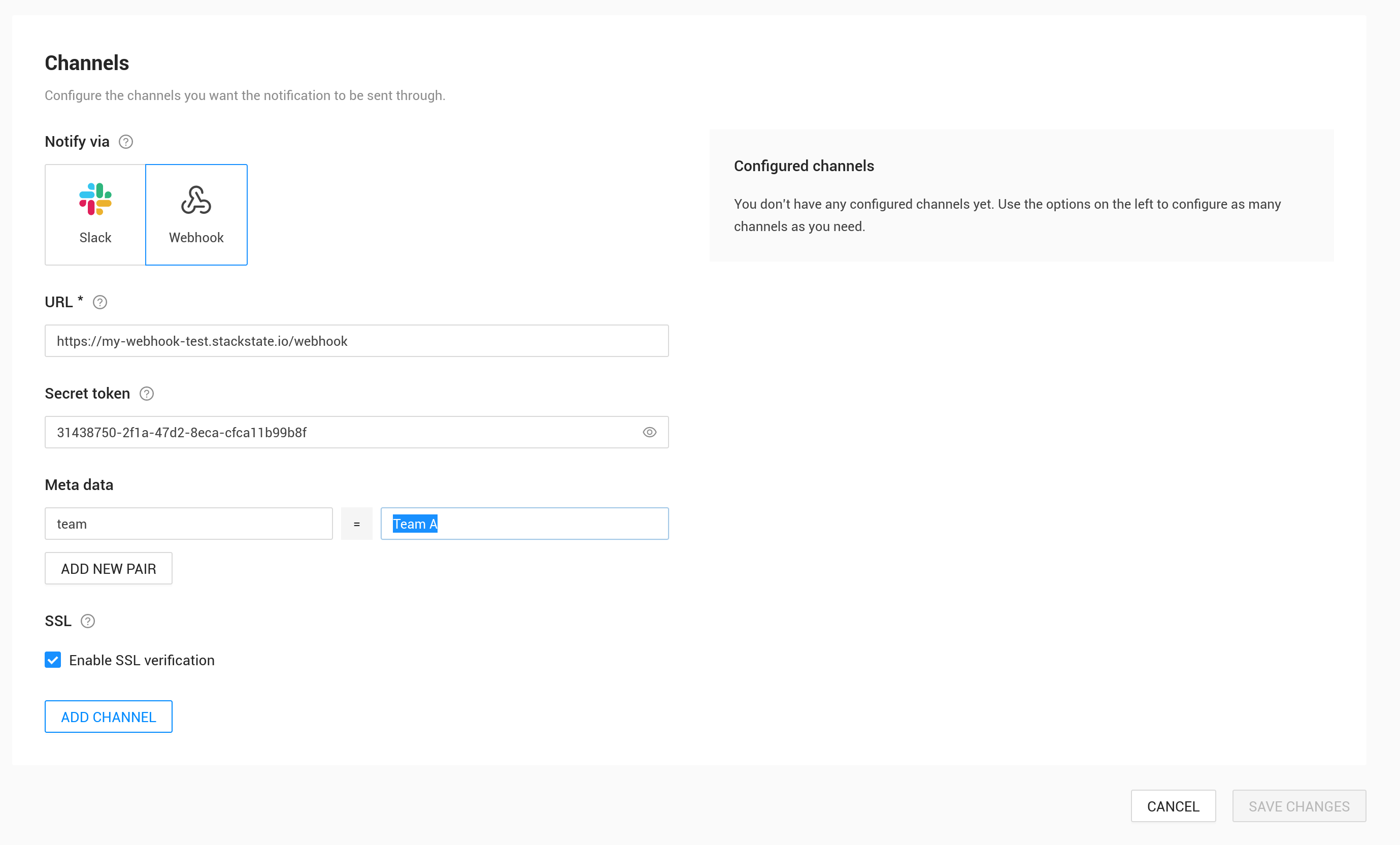
To configure a webhook complete the fields:
-
URL - enter the URL of the webhook endpoint. The URL must be percent-encoded if it has special characters.
-
Secret token - a secret token that SUSE Observability includes in every request to validate it
-
Metadata - add extra key/value pairs that are included in the payload. This can be used when the same endpoint handles multiple SUSE Observability webhooks and needs extra information
-
Enable SSL verification - (default on) enable SSL certificate validation. Only disable when using self-signed certificates or certificate authorities not supported by SUSE Observability
Finally select "Add channel". The webhook channel will appear on the right. To test that the webhook works send a test message by clicking the "Test" button.
Webhook requests and payload
The Webhook channel sends data as HTTP POST requests. The endpoint and payload are documented in an OpenAPI specification.
Example payload for a notification open request
{
"component": {
"identifier": "urn:kubernetes:/k8s-demo-cluster:sock-shop:service/catalogue",
"link": "https://play.stackstate.com/#/components/urn%3Akubernetes%3A%2Fk8s-demo-cluster%3Asock-shop%3Aservice%2Fcatalogue?timeRange=1702624556757_1702646156757×tamp=1702635356757",
"name": "catalogue",
"tags": [
"app.kubernetes.io/component:catalogue",
"app.kubernetes.io/instance:sock-shop",
"app.kubernetes.io/managed-by:Helm",
"app.kubernetes.io/name:sock-shop",
"app.kubernetes.io/version:0.3.5",
"cluster-name:k8s-demo-cluster",
"cluster-type:kubernetes",
"component-type:kubernetes-service",
"domain:business",
"extra-identifier:catalogue",
"helm.sh/chart:sock-shop",
"name:catalogue",
"namespace:sock-shop",
"service-type:ClusterIP",
"stackpack:kubernetes"
],
"type": "service"
},
"event": {
"state": "CRITICAL",
"title": "HTTP - response time - is above 3.0 seconds",
"triggeredTimeMs": 1702635356757,
"type": "open"
},
"monitor": {
"identifier": "urn:stackpack:kubernetes-v2:shared:monitor:kubernetes-v2:http-response-time",
"link": "https://play.stackstate.com/#/monitors/urn%3Astackpack%3Akubernetes-v2%3Ashared%3Amonitor%3Akubernetes-v2%3Ahttp-response-time",
"name": "HTTP - response time - is above 3 seconds",
"tags": []
},
"notificationConfiguration": {
"identifier": "urn:system:default:notification-configuration:testing-2",
"link": "https://play.stackstate.com/#/notifications/urn%3Asystem%3Adefault%3Anotification-configuration%3Atesting-2",
"name": "Test Notification"
},
"notificationId": "836f628c-1258-4500-b1c7-23884e00f439",
"metadata": {
"team": "Team A"
}
}
The sections in the open payload are:
-
Component: the SUSE Observability component that the notification applies to. This includes the components name, identifier, type, and tags. It also has a link to the SUSE Observability UI that will open the component at the time of the health state change
-
Event: the event that triggered this notification. The
typeisopenfor both new notifications and updates. For health notifications,stateisCRITICALorDEVIATING. For silencing notifications,stateisMUTEDandreasoncontains the silencing note, even when the monitor result isCLEAR. The event also includes the triggered time and atitlesupplied by the monitor. -
Monitor: the monitor that triggered the notification. Next to the monitor name, tags and identifier also a link is included. The link opens the monitor in the SUSE Observability UI.
-
Notification configuration: The notification configuration for this notification. Includes a name, identifier and link. The link will open the notification configuration in the SUSE Observability UI.
-
Notification id: A unique identifier for this notification. See also the Notification life cycle
-
Metadata: It is possible to specify metadata on a webhook channel. The metadata is one-to-one reproduced here as a set of key/value pairs.
Example payload for a notification close request
{
"component": {
"identifier": "urn:kubernetes:/gke-demo-dev.gcp.stackstate.io:sock-shop:service/catalogue",
"link": "https://stac-20533-webhook-channel-management-api.preprod.stackstate.io/#/components/urn%3Akubernetes%3A%2Fgke-demo-dev.gcp.stackstate.io%3Asock-shop%3Aservice%2Fcatalogue?timeRange=1702624556757_1702646156757×tamp=1702635356757",
"name": "catalogue",
"tags": [
"app.kubernetes.io/component:catalogue",
"app.kubernetes.io/instance:sock-shop",
"app.kubernetes.io/managed-by:Helm",
"app.kubernetes.io/name:sock-shop",
"app.kubernetes.io/version:0.3.5",
"cluster-name:gke-demo-dev.gcp.stackstate.io",
"cluster-type:kubernetes",
"component-type:kubernetes-service",
"domain:business",
"extra-identifier:catalogue",
"helm.sh/chart:sock-shop",
"name:catalogue",
"namespace:sock-shop",
"service-type:ClusterIP",
"stackpack:kubernetes"
],
"type": "service"
},
"event": {
"reason": "HealthStateResolved",
"type": "close"
},
"monitor": {
"identifier": "urn:stackpack:kubernetes-v2:shared:monitor:kubernetes-v2:http-response-time",
"link": "https://stac-20533-webhook-channel-management-api.preprod.stackstate.io/#/monitors/urn%3Astackpack%3Akubernetes-v2%3Ashared%3Amonitor%3Akubernetes-v2%3Ahttp-response-time",
"name": "HTTP - response time - is above 3 seconds",
"tags": []
},
"notificationConfiguration": {
"identifier": "urn:system:default:notification-configuration:testing-2",
"link": "https://stac-20533-webhook-channel-management-api.preprod.stackstate.io/#/notifications/urn%3Asystem%3Adefault%3Anotification-configuration%3Atesting-2",
"name": "Test Notification"
},
"notificationId": "836f628c-1258-4500-b1c7-23884e00f439",
"tags": {
"team": "Team A"
}
}
The sections in the close payload are the same as in the open payload except for the event.
The event has type: "close" and a reason that identifies why the notification closed.
The OpenAPI specification documents the possible reasons.
When silencing closes a notification, the event also includes silencingNote.
A close event does not include state, title, or triggeredTimeMs.
Silencing payloads
Under Notify when, the The silencing rules change option controls how notifications respond to silencing.
The examples below show only the event section of the webhook payload.
When the option is enabled, silencing opens or updates a notification with state: "MUTED" and the silencing note in reason.
This also applies when the monitor result is CLEAR: MUTED describes silencing, not the underlying health state.
{
    "event": {
        "state": "MUTED",
        "title": "HTTP - response time - is above 3.0 seconds",
        "triggeredTimeMs": 1702635356757,
        "reason": "Scheduled maintenance",
        "type": "open"
    }
}
When the option is disabled, muting an existing notification closes it with reason: "HealthStateSilenced".
The silencingNote field contains the silencing note; it is separate from reason.
Muted results do not open notifications while the option is disabled.
{
    "event": {
        "reason": "HealthStateSilenced",
        "silencingNote": "Scheduled maintenance",
        "type": "close"
    }
}
Notification life cycle
As can be seen from the payload each notification is uniquely identified by its notificationId. It’s possible, even common, to receive more than one message for the same notification, but they will always be sent according to this life cycle.
An unmuted monitor result creates a notification when its health state matches the notification configuration.
Critical results qualify; deviating results qualify when included in the configuration.
When The silencing rules change is enabled, a muted result also creates a notification, including a CLEAR result.
The webhook receives an event with type: "open".
See Silencing payloads for the fields sent in each silencing case.
A notification updates when the event’s state, title, or silencing note changes.
Changes to the component and other parts of the payload appear in the next message but do not trigger an update themselves.
An update also sends type: "open" with the same notificationId.
Use this identifier to update the existing notification in the external system.
A notification closes when its monitor result no longer qualifies for notification.
With The silencing rules change disabled, muting an existing notification also closes it.
When silencing ends, a qualifying health state opens or updates a health notification; otherwise, an open silencing notification closes.
A close sends type: "close" and is the last message for that notificationId.
A close does not always mean the health issue resolved: inspect event.reason and, when present, event.silencingNote.
Note that a notification can be both opened and closed for different reasons than a health state change:
-
The triggering health state is muted (or unmuted) by a change in silencing rules.
-
A tag is added to a component or monitor. This can cause some critical monitor health state to match the selection criteria in a notification configuration and corresponding notifications will be opened.
-
For the same reason removal of a tag from a component or monitor can close a notification even though the health state is still critical.
-
Changes to the notification configuration itself can also result in many new notifications being opened or closed.
Validate the requests
The secret token specified in the channel configuration is included in the webhook requests in the X-StackState-Webhook-Token header. Your webhook endpoint can check the value to verify the requests is legitimate.
Retries
The webhook channel will retry requests for a notification until it receives a status 200 OK response (the body in the response is ignored). If the webhook fails to process the message (for example because a database is unreachable right at the time) it can simply respond with a 500 status code. SUSE Observability will re-send the same message within a few seconds in the hope that the issue has been resolved now.
If a notification was updated or closed the old message will however be discarded and the new, updated, message will be send and again retried until it succeeds.
Example webhook
To test how webhooks work you can use this simply Python script that starts an HTTP server and writes the received payload to standard out.
-
Save this Python script as
webhook.py:
from http.server import HTTPServer, BaseHTTPRequestHandler
import json
import sys

class WebhookHTTPRequestHandler(BaseHTTPRequestHandler):

 def do_POST(self):
     content_len = int(self.headers.get('content-length', 0))
     notification = json.loads(self.rfile.read(content_len))
     print("Notification received: ", json.dumps(notification, indent = 2))
     self.send_response(200)
     self.end_headers()

httpd = HTTPServer(('', int(sys.argv[1])), WebhookHTTPRequestHandler)
httpd.serve_forever()-
Run the webhook server on an unused port (for example 8000):
python3 webhook.py 8000 -
Configure the webhook in SUSE Observability with the URL for your webhook server
http://webhook.example.com:8000 -
Click
teston the webhook channel
|
The URL for your webhook must be accessible by SUSE Observability, so a localhost address or a local ip-address won’t be enough. |
The example does not authenticate the request, which can be added by verifying the value of the token header.
Instead of implenting this by hand it’s also possible to use the OpenAPI specification to generate a server implementation in any of the languages supported by the OpenAPI generators project.